When editing a model, the top of screen looks like this. It has a main (navigation menu), A toolbar which contains various modelling tools and a node palette. If you hover your cursor over the buttons, you will get a description.
Creating nodes
Click on a node in the node palette and drag it onto the canvas below. Can also drag an edge from a node and click on the canvas and it will create a new node attached to the edge.
After creating a node, you can just start typing the name and it should set it directly on the node. Otherwise, you can set it on the properties (see editing node properties).
Editing node properties
After selecting a node, the node properties are shown in the left panel. The panel can be opened/closed using the button on the left of the toolbar shown below.
You can also double click on the node to open a node properties dialog box.
Information supply chain
Start your model by creating an information supply chain. This is a series of actions and information nodes connected into a graph. Each supply chain must start with a capture node. This is a special type of action that defines the load on the supply chain (refer quantifying a model).
The following is a simple representation of a customer adding items to a shopping cart.
Add Roles and Systems to the supply chain to complete the model.
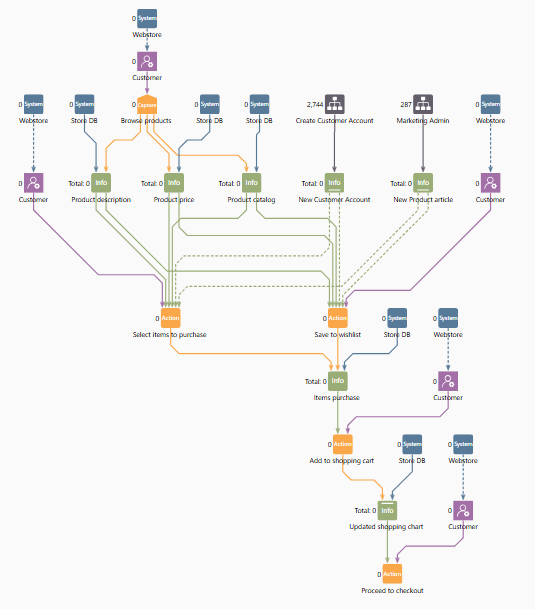
Add Roles and Systems to the supply chain to complete the model.
Was this article helpful?
That’s Great!
Thank you for your feedback
Sorry! We couldn't be helpful
Thank you for your feedback
Feedback sent
We appreciate your effort and will try to fix the article